
Destinations
Overview
Creating Destinations
This section will help guide you to create a destination to store your backups. To create a destination, click on “Create New Destination”
Destination Types
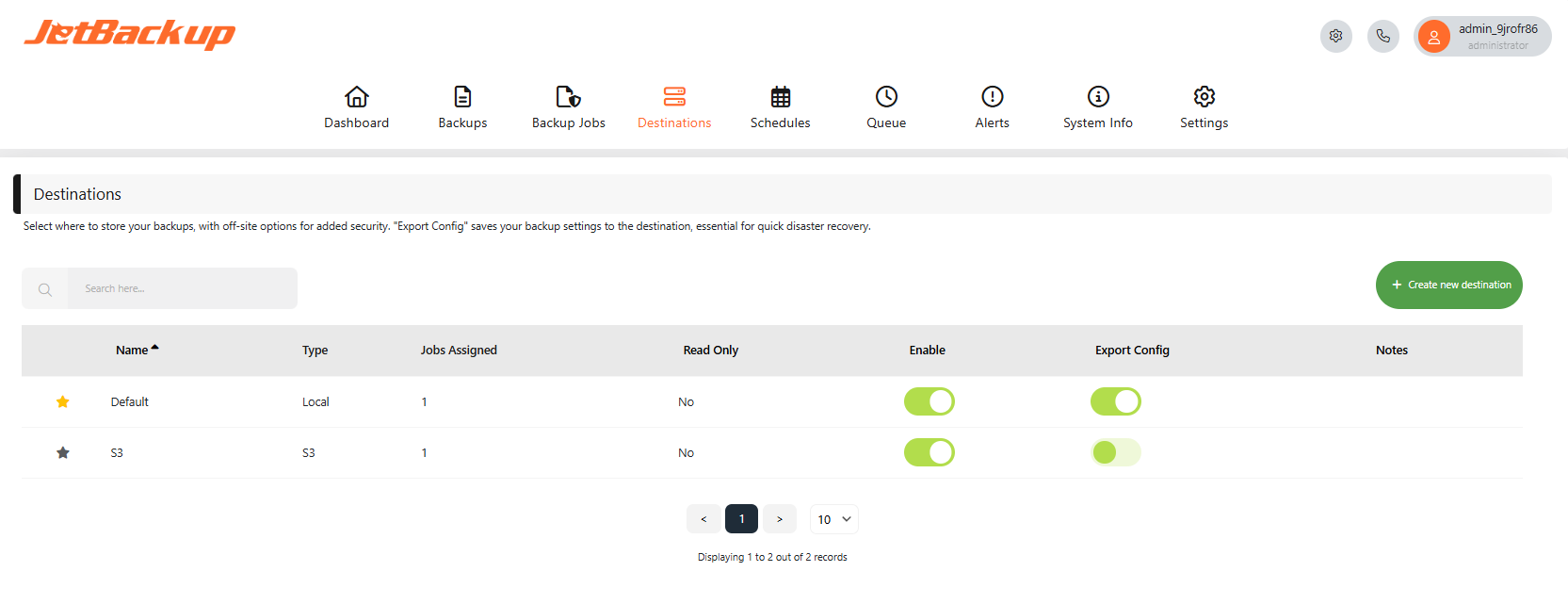
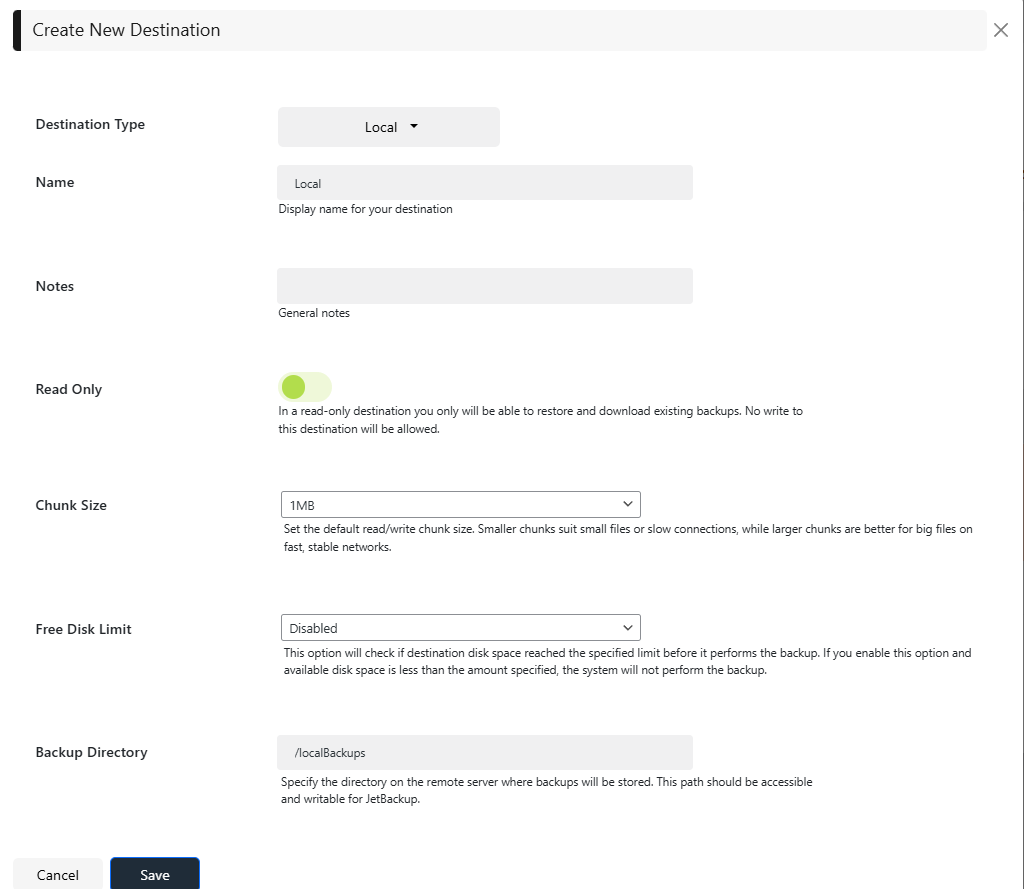
Local Destination Example:
Default Destination
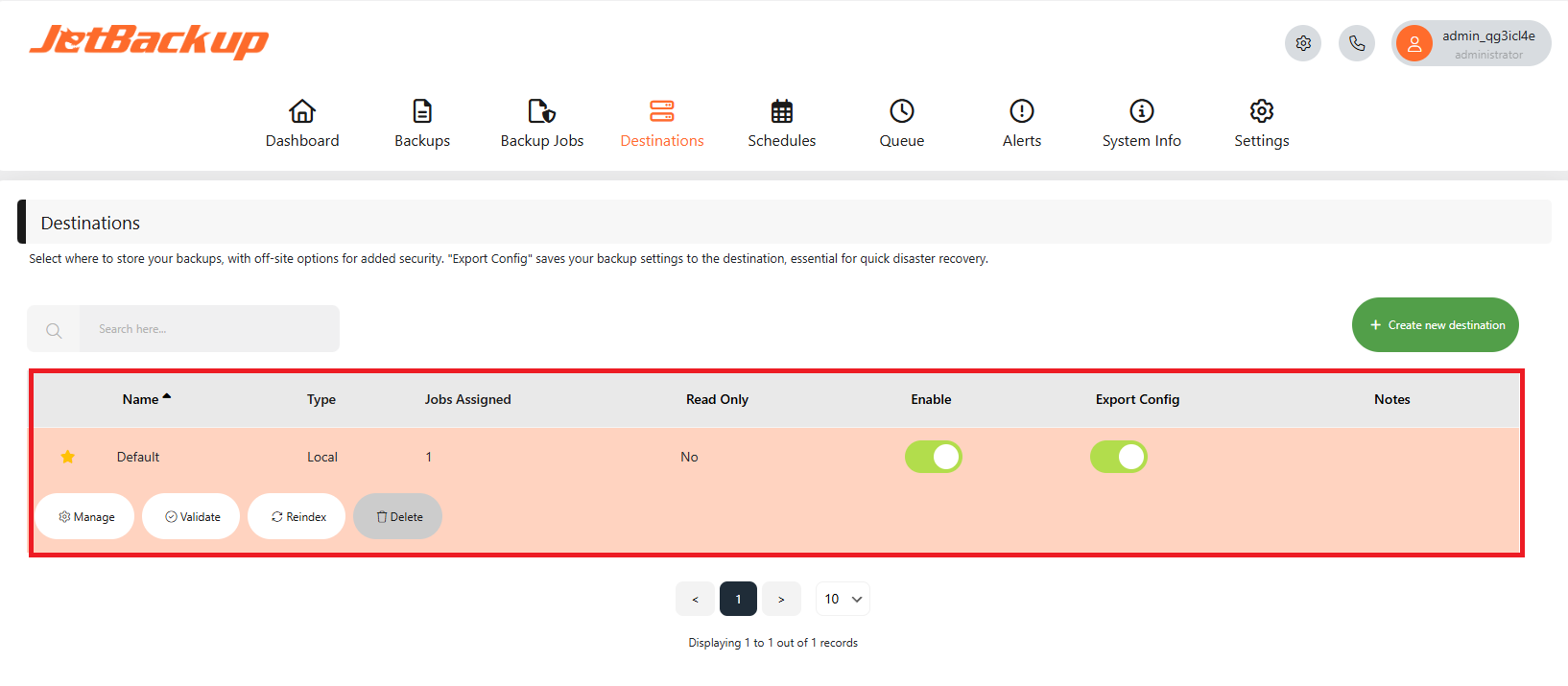
When JetBackup for WordPress is first opened, a Default Destination (Local) is already configured. The Backup Directory for this destination is set to transfer backups to the JetBackup Data Directory. You may find the configuration to this destination below:
Default Destination Configurations
Name: Default
Chunk Size: 1MB
Free Disk limit: Disabled
Backup Directory: /
Please note that the Default Destination can be modified, however, it cannot be deleted.
Name
Specify a name for the destination.
Notes
Enter notes for the destination.
Read Only
This option allows users to add destinations as a “Read-Only” destination. This type of destination will only be able to restore and download existing backups.
Chunk Size
Adjust the default read/write chunk size. Smaller chunks are ideal for small files or slow connections, while larger chunks work best for big files on fast, stable networks.
Free Disk Limit
This option prevents backups if the destination disk space reaches the specified limit. If this option is enabled and the available disk space is less than the amount specified, the backup job will not execute.
Backup Directory
Specify the directory on the remote server where backups will be stored.
Destination Settings
Click on the preferred destination listed in the Destinations section to expand and view the available destination settings.

Enable
Click the toggle in the Enable column to enable or disable the destination.
Manage
Click on Manage to modify your destination settings.
Browse
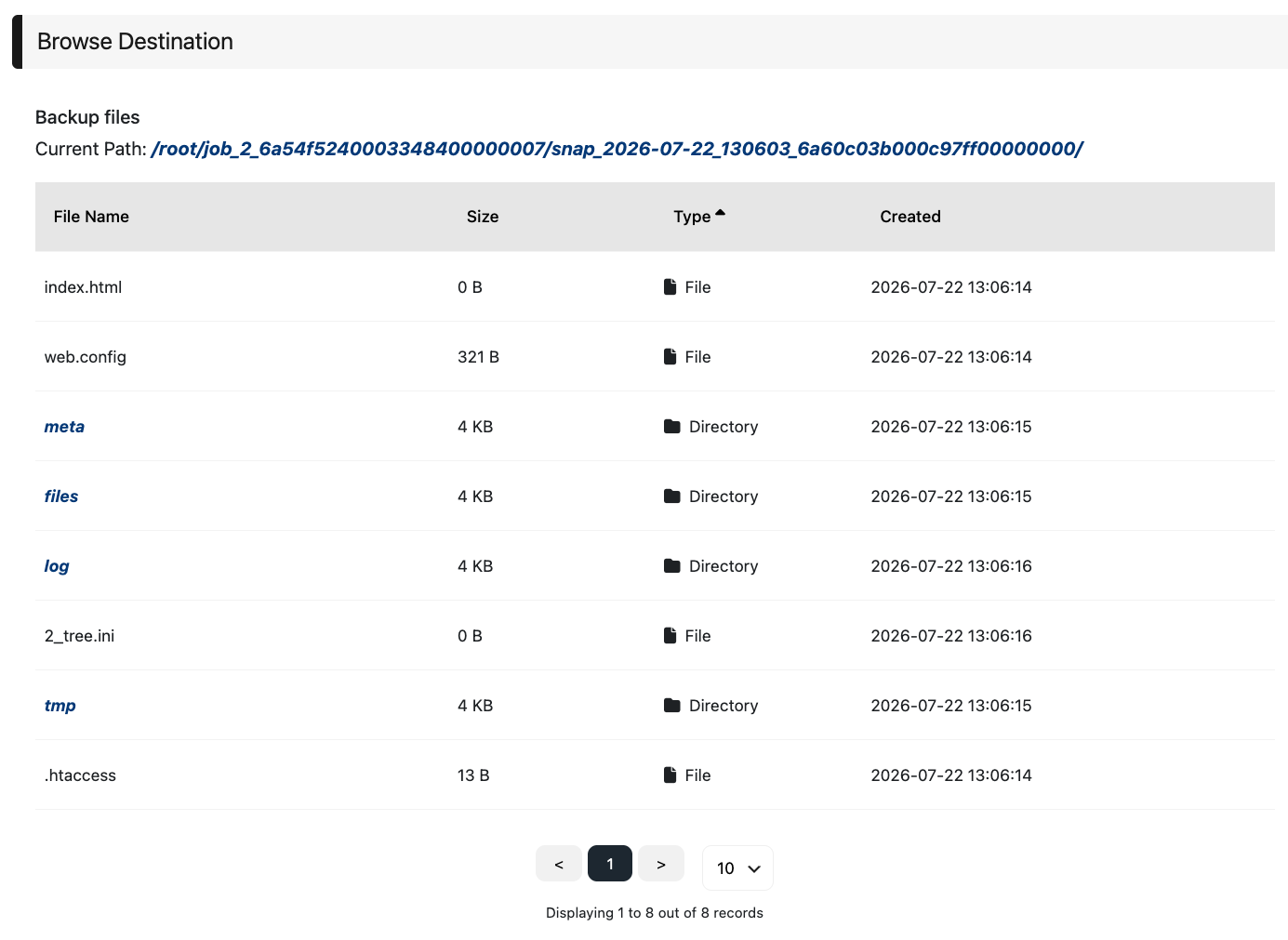
Click on Browse to Browse files and folders stored in your destination.
Validate Destination
Validating a Destination checks whether your destination is valid and reachable.
Export Config
When enable it exports the current JetBackup for WordPress (JBWP) configuration to the selected destination, allowing you to restore or reuse your backup settings on another site.
Reindex
Reindexing resyncs data between your server and the destination. Useful in case of adding a destination that already contains JetBackup generated backups or if changes in the destination were made manually.
Delete
Click on Delete to delete your destination permanently. Make sure that no backup jobs are assigned to the destination in order to delete it.
Feedback
Was this page helpful?
Glad to hear it! Please tell us how we can improve.
Sorry to hear that. Please tell us how we can improve.