Jetbackup Storage
Creating the Destination
This guide shows how to add a JetBackup Storage backup destination to JetBackup.
JetBackup Storage has two distinct account types, each using a different destination setup:
Integrated Storage accounts are simplified, bucket-only accounts created directly through JetBackup using the “Quick Access” signup. They do not expose a standard S3 console for managing buckets/bucket settings, keys, etc. — instead, access is granted via a Quick Access Code generated through the JetBackup Client Area. Use this destination type if you created your storage account through the Get Quick Access Code button on this page. You do not need to create an Access/Secret Key pair; the Quick Access Code handles authentication automatically.
S3 Storage accounts are full JetBackup Storage accounts with standard S3-compatible API and console access, giving you full control over bucket creation, users, regions, and Access/Secret Key management. Because these accounts expose standard S3 credentials and all S3 features, they must be configured using the S3-Compatible Destination instead of this page. Use the guide Integration with JetBackup 5 to create your Access/Secret Key pair and associated bucket. Do not use the Quick Access Code button when using Self-Managed JB Storage accounts — it will create a separate Integrated S3 account instead.
NOTE: Kindly ensure Bucket settings such as Bucket Versioning, Object Lock/Governance Mode, Object Lifecycle are disabled as these settings are UNSUPPORTED and can be expected to cause issues with your backups.
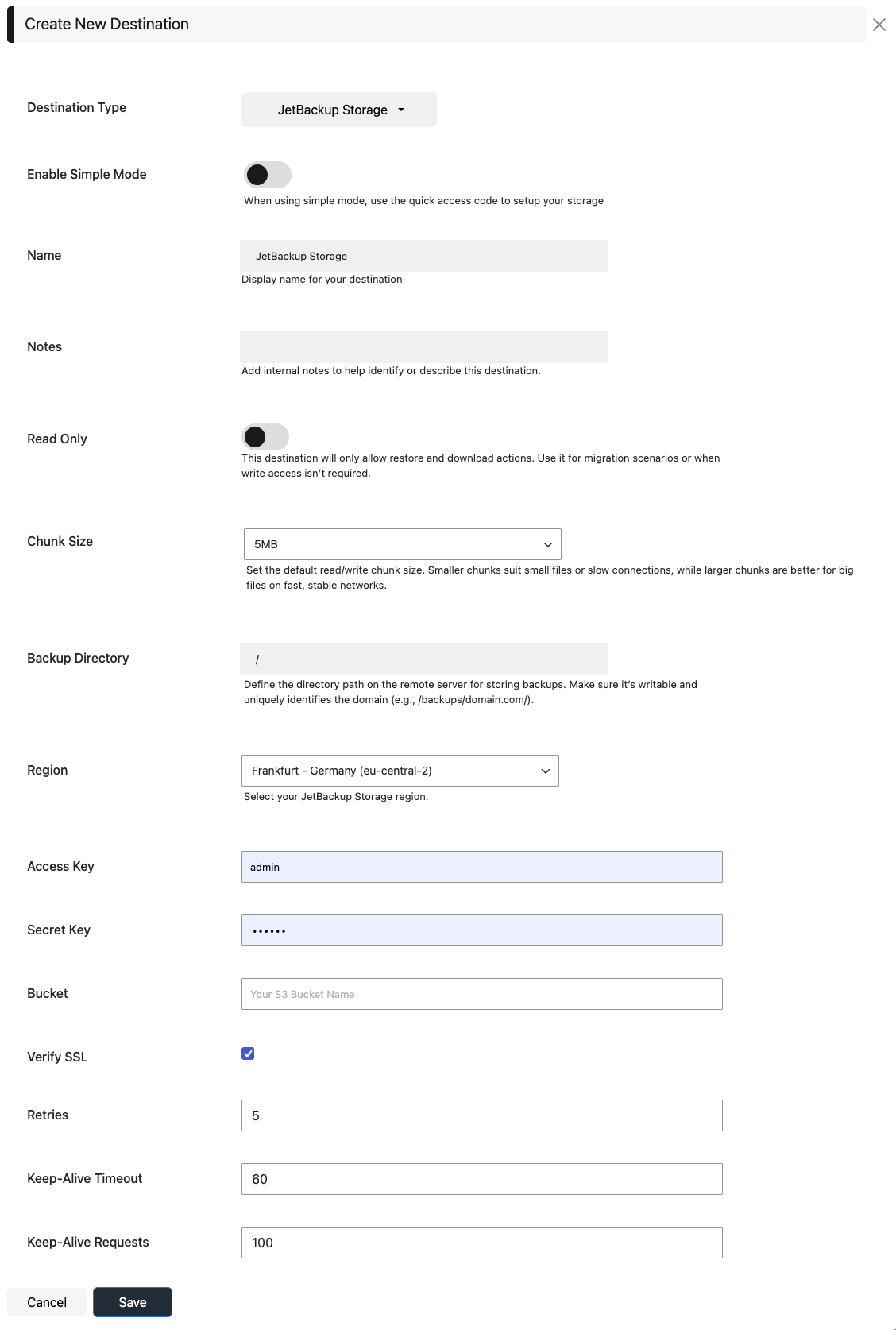
An example JetBackup Storage configuration page for the destination:
Destination Name
Specify a unique name for your destination. This will be used internally for your convenience.
Read Only
This option allows you to add the destination as a “Read Only” destination. You can only restore and download existing backups from a read-only destination. Read Only is required if the Backup Directory is already owned by another destination/server.
Enable Simple Mode
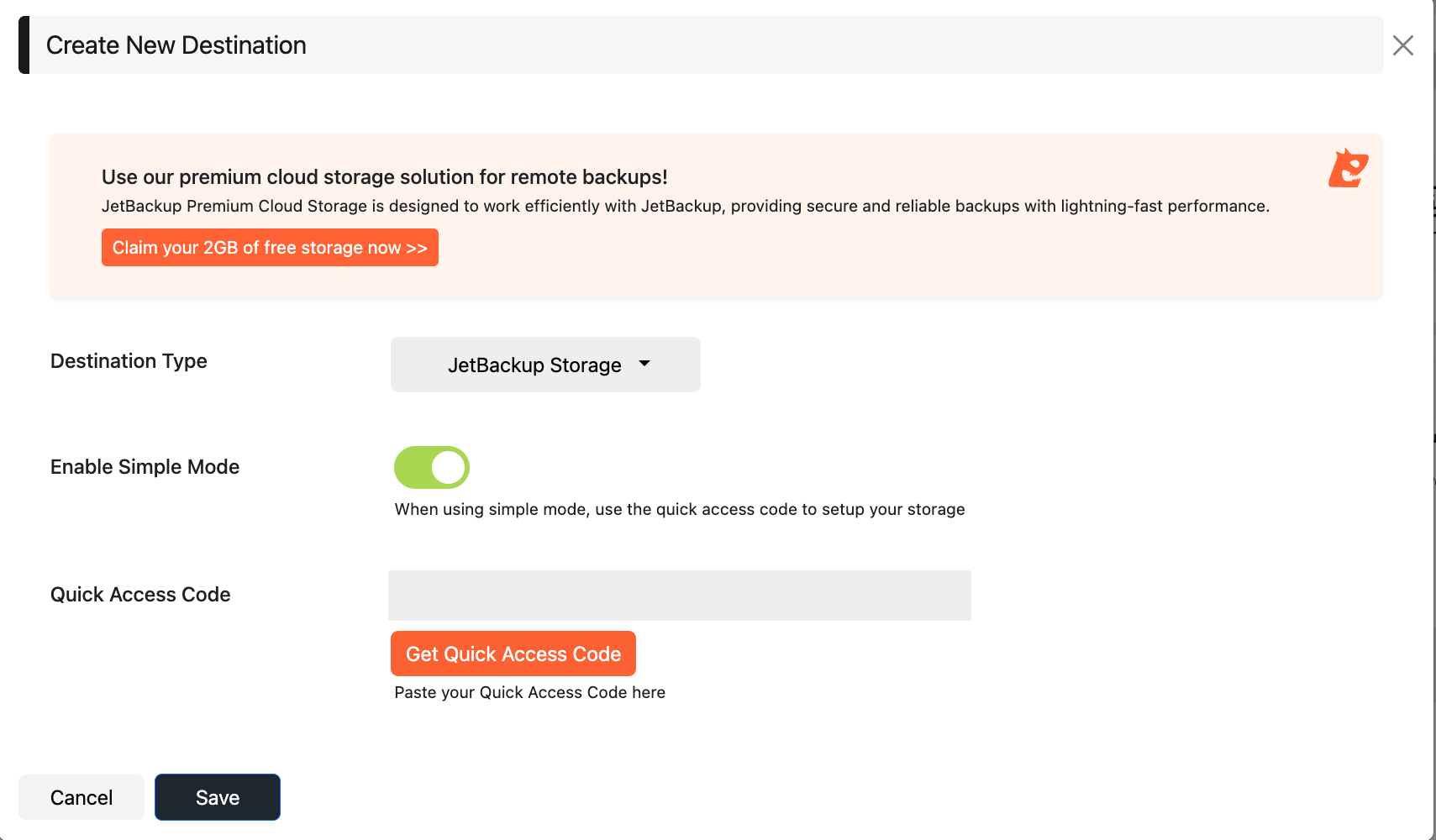
When Enable Simple Mode is enabled, you only need the JetBackup Storage Quick Access Code to create a destination.
Quick Access Code
Use the Get Quick Access Code button on the page to use an Integrated JetBackup Storage account. A popup will be displayed prompting you to enter your JetBackup Client Area (billing.jetbackup.com) login credentials or creating a new account. The Access Code will be displayed upon selecting the Region, or a pre-existing bucket. Copy and paste the code in this box to quickly create and authenticate to the destination.
During first-time signup, choose a Region that’s geographically close to your server for the best backup performance as the region cannot be changed on Integrated JB Storage Accounts.
Backup Directory
This will be our starting point when accessing this destination. Always use the absolute path and make sure to start with “/”.
For example: /PATH/TO/FOLDER.
Note: The absolute path must be unique and can not be used by two different Destination Configurations. If a backup directory is already owned by another JetBackup Destination, you may create a “Read Only” Destination to that path.
Only the following characters are allowed for the Backup Directory Path:
A-Z a-z 0-9 and /.
Access/Secret Key Pair (For JetBackup Storage Self-Managed accounts only)
Every JetBackup Storage Destination has an Access/Secret Key Pair you must use in order to create the destination if you are not using the Quick Access Code. Please visit the specific documentation on creating these pairs.
- JetBackup Premium Cloud Storage - Creating Access/Secret Keys
Bucket (For JetBackup Storage Self-Managed accounts only)
Please visit the specific documentation on creating buckets. If you are using the Quick Access Code button above, this field will be auto-generated and you cannot create additional buckets.
- JetBackup Premium Cloud Storage - Creating storage buckets
Region (For JetBackup Storage Self-Managed accounts only)
JetBackup will list known regions for the JetBackup Storage Destination. If you are using the Quick Access Code button above, you selected the region in the Quick Access Code popup and will not be able to select a different region.
{{% alert color=“primary” %}} It is best practice to choose the closest region to your server for best performance. {{% /alert %}}
Verify SSL
Whether SSL verification is enabled/disabled on the JetBackup Storage destination. [ default: Yes ]
Retries
Controls how many retries will be attempted if the destination returns an error for an HTTP call (upload / download / delete). [default: 3 retries]
Note: Increasing the number of retries may also increase your backup time accordingly as JetBackup tries to upload for a maximum set number of times until either getting a successful response from JetBackup Storage or reaching the set number of retries.
Large files upload chunk size
Select the multipart upload chunk size for large files. Lower this value if you find large files are failing to upload. [default: 5120 MB]
Keep Alive timeout
The time in seconds, that the host will allow an idle connection to remain open before it is closed. [default: 60 seconds]
Keep-Alive Requests
The maximum number of requests that can be sent on a single connection before closing it. Choose “Determined by remote vendor” to fetch the maximum keep alive requests automatically. [default: 100]
Additional information
Object storage is a type of storage where data is stored as objects rather than blocks. This concept is useful for data backup, archiving, and scalability for high-load environments.
Objects are the entities of data storage in JetBackup Storage buckets. JetBackup Storage objects are comprised of three main parts; the content of the object (data contained in the object including directories or files), the unique object identifier (Unique string used to identify the item within the bucket.), and metadata. Metadata contains information such as name, size, date, security attributes, content type, and URL. Each object has an ACL or Access Control list which dictates who is permitted access to the object. JetBackup Storage has distinct advantages such as allowing you to avoid network bottlenecks as well as a high degree of scalability and data security.
Feedback
Was this page helpful?
Glad to hear it! Please tell us how we can improve.
Sorry to hear that. Please tell us how we can improve.